Article Saver, one week on
A week ago, I wrote about two Boring Tiny Tools I made for myself. One of them was Article Saver, an iPhone app for saving articles to read later.
Using it has changed it. So here is an update on why I made it, what it does now, and how it fits into my reading.
Why I created this
Some of the best writing I read nowadays is in long-form articles on X. I like to share the insightful ones with friends and colleagues.
Doing that by hand was painful. I would copy-and-paste the article into Apple Notes, paste the link, highlight the key excerpts, and then paste those into a Whatsapp message or email. This took 5-10 minutes EACH TIME, especially since the X app is glitchy and I often had to redo the copying.
So on 31 October, I built the app with Claude Code’s help. The original job was simple: get an article out of X (or anywhere else) and into a form I can read, mark up and pass on.
What it does
Save and read
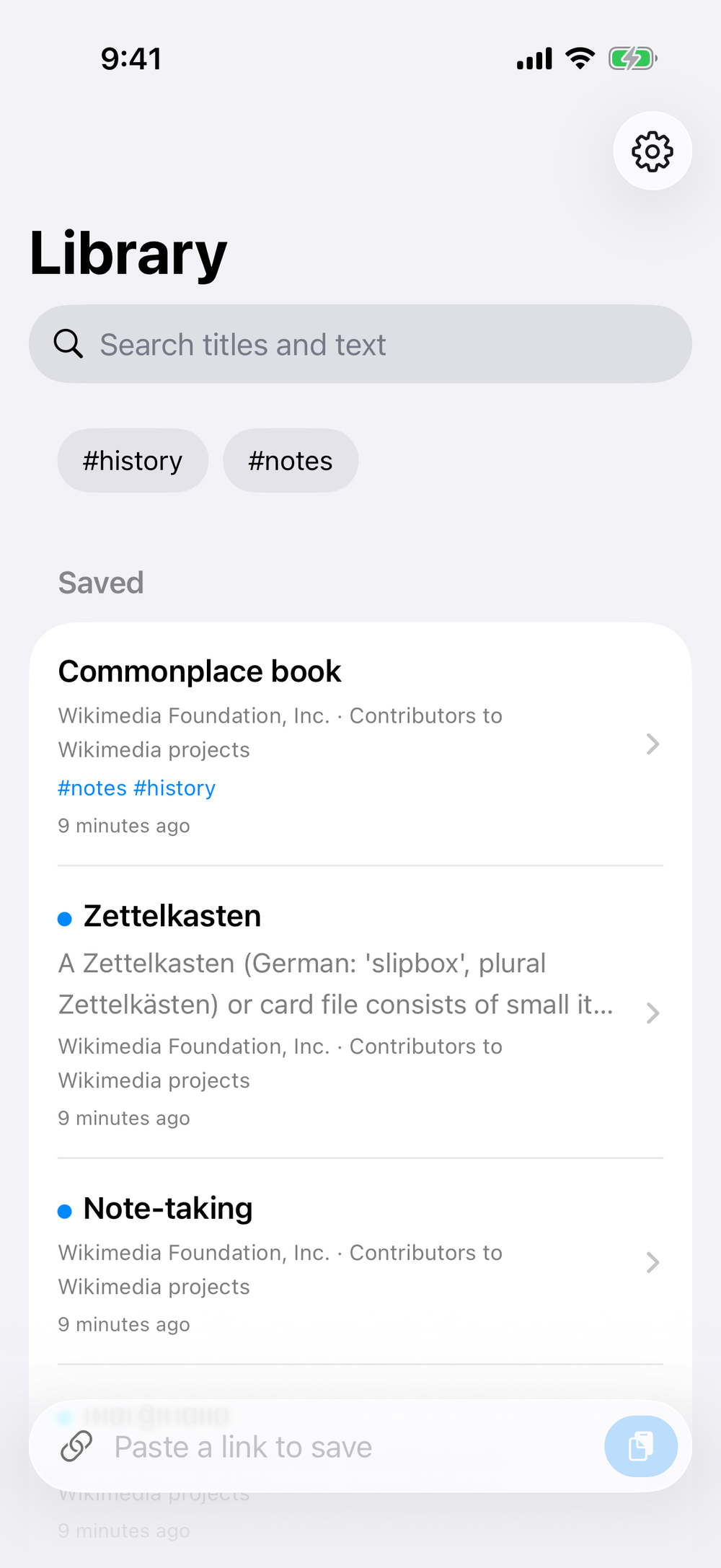
I share a link to Article Saver from the iOS Share Sheet, or paste it into the box at the bottom of the library. The app then saves a clean copy of the article, with its images, so I can read it offline. It handles X Articles and threads, and I can sign in to sites I subscribe to, inside the app.
The library shows what I haven’t read yet (the blue dots). It searches the full text of every article, not just the titles, and I can filter by hashtag.
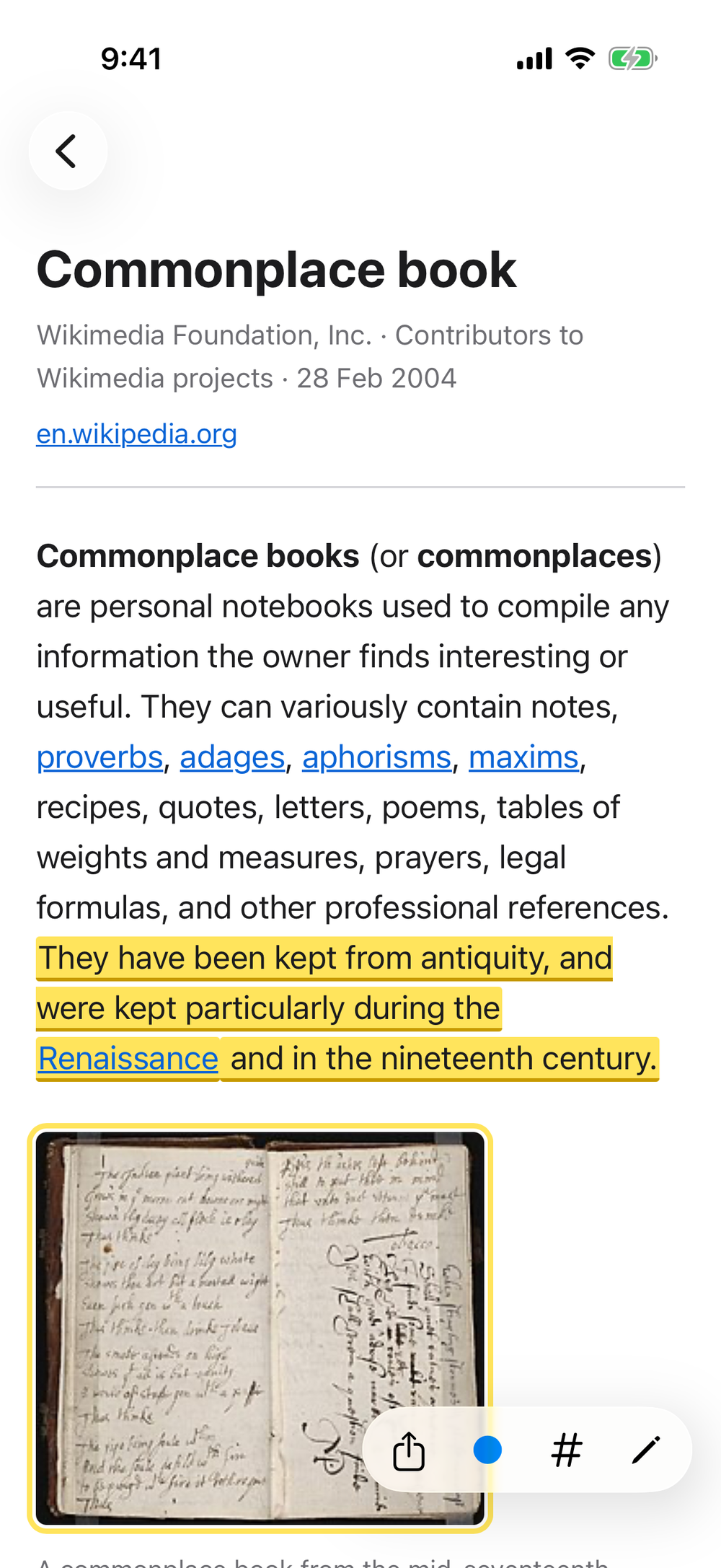
Two small things this week made reading much nicer:
- The article buttons (share, mark unread, hashtags, edit) moved from the top of the screen to a floating bar at the bottom right.
- Articles now reopen where I stopped reading. Before this, I kept having to scroll back to find my place.
Highlight and take notes
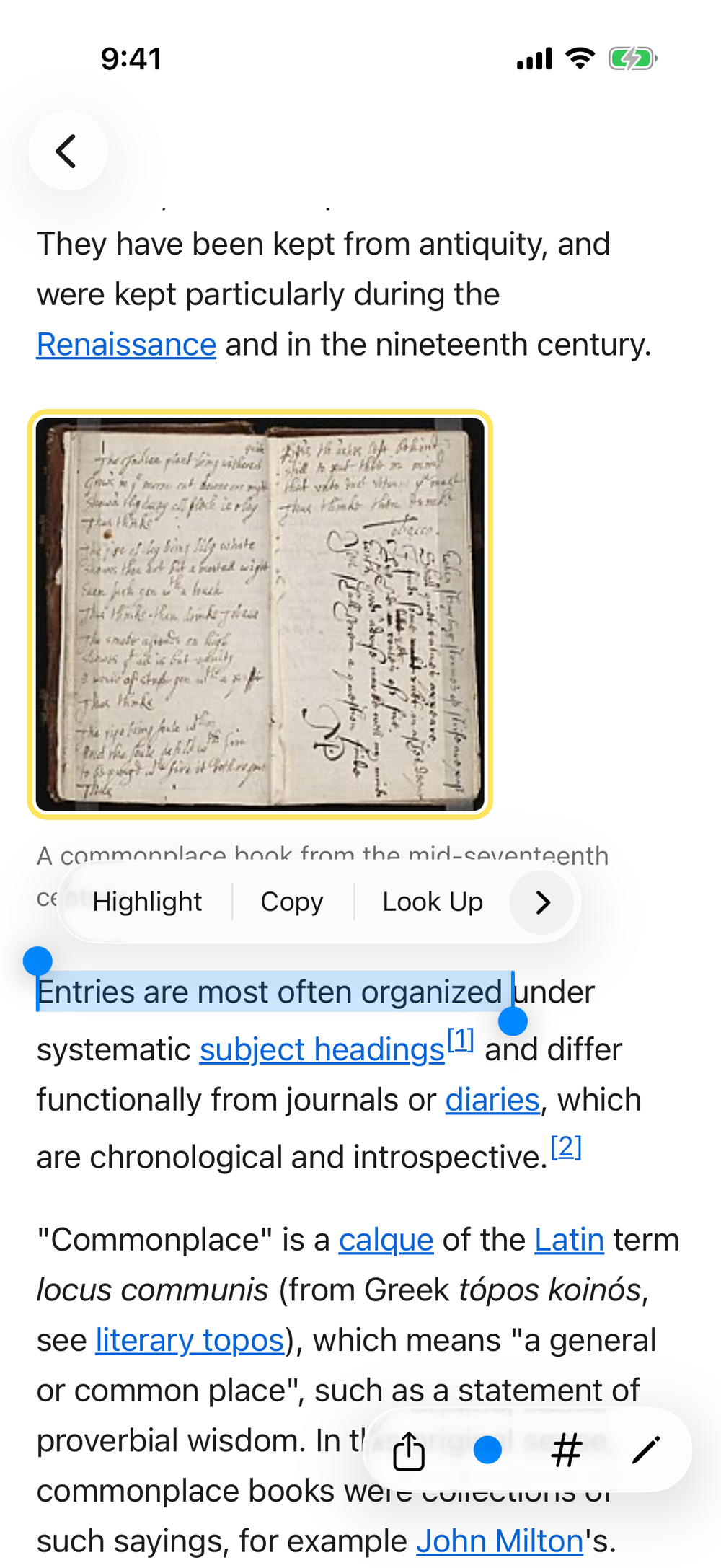
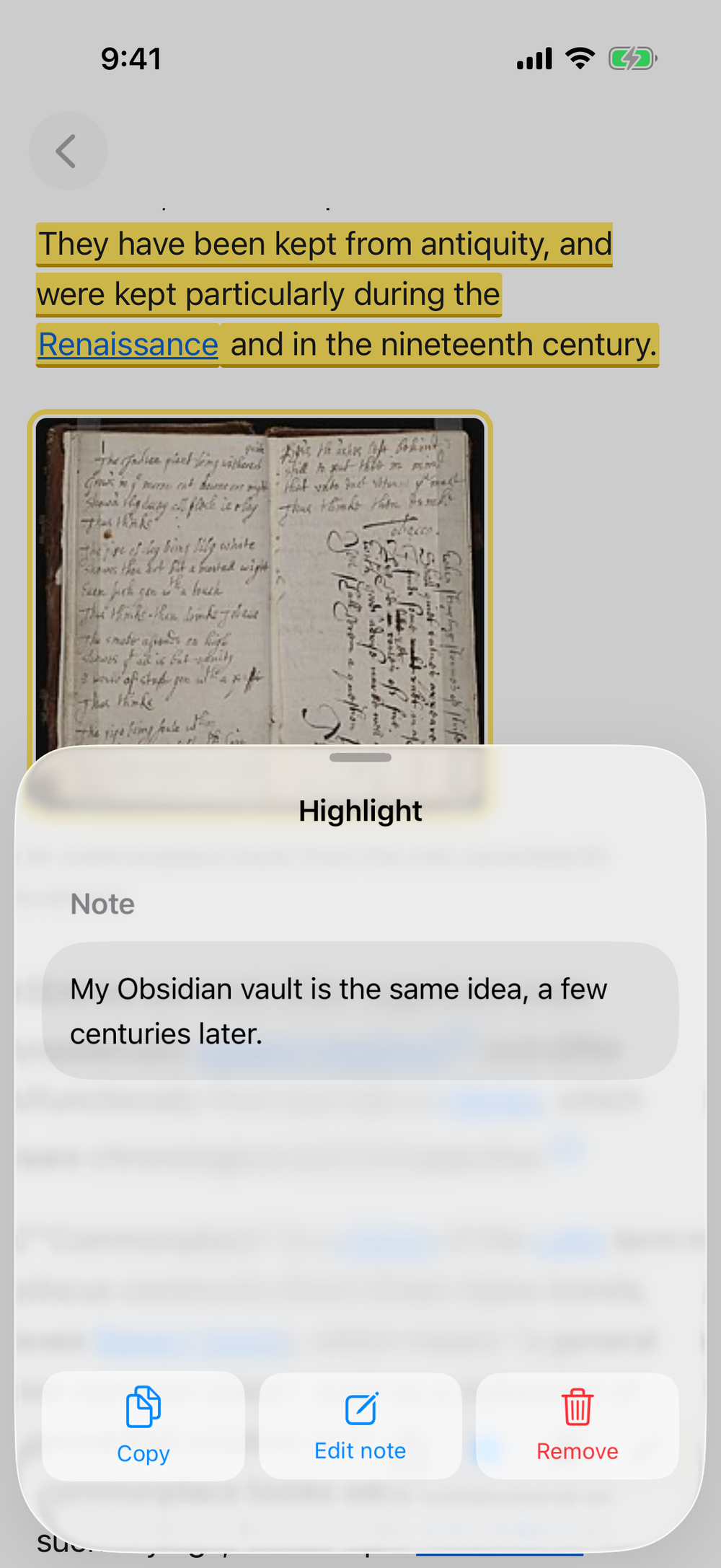
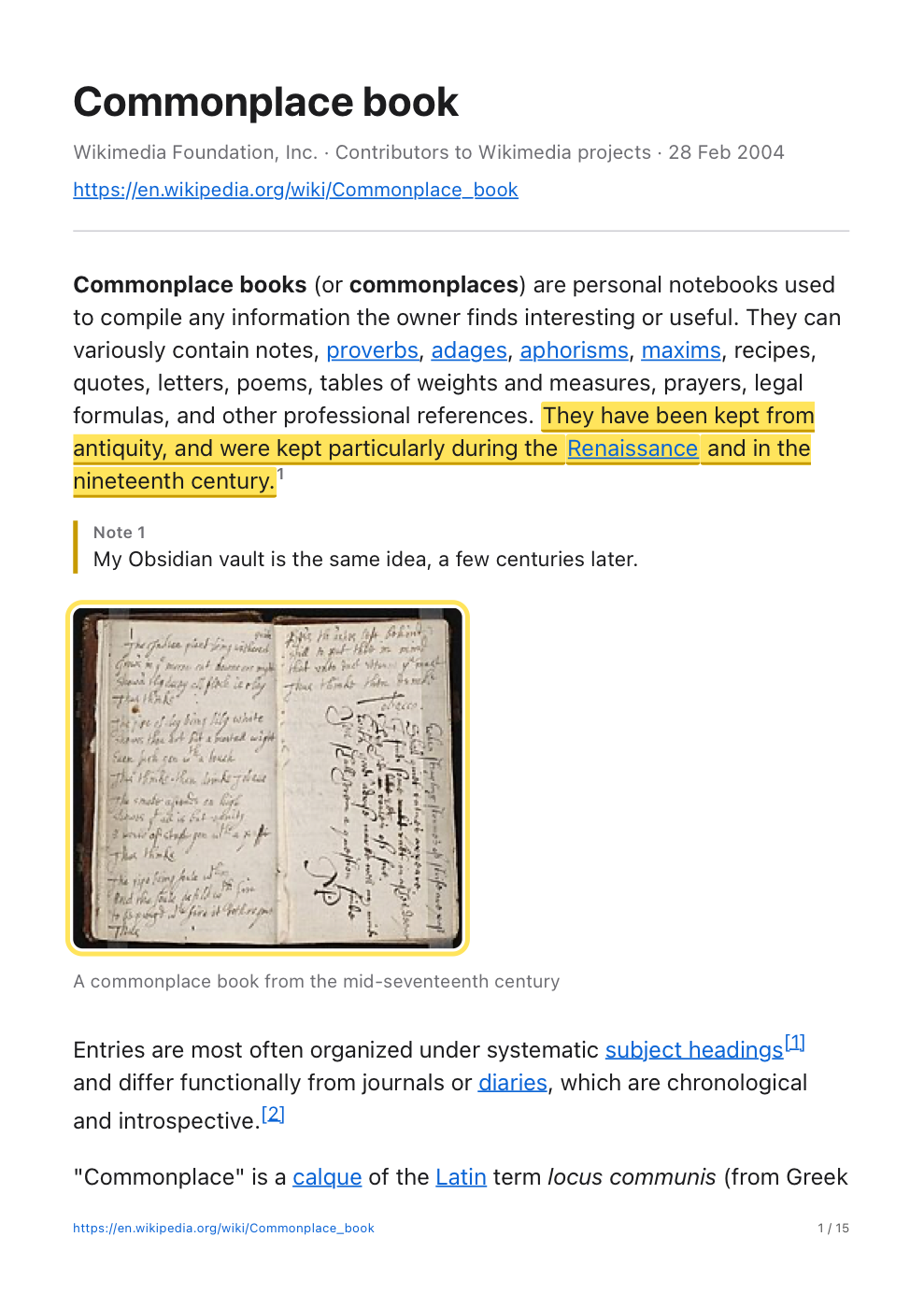
I select text and tap Highlight. Tapping a highlight lets me copy it, remove it, or add a note to it.
I can also highlight images now, with a single tap. I added this after noticing that my exports had no images in them, because the app only let me highlight text!
Send it somewhere
The share button has three options:
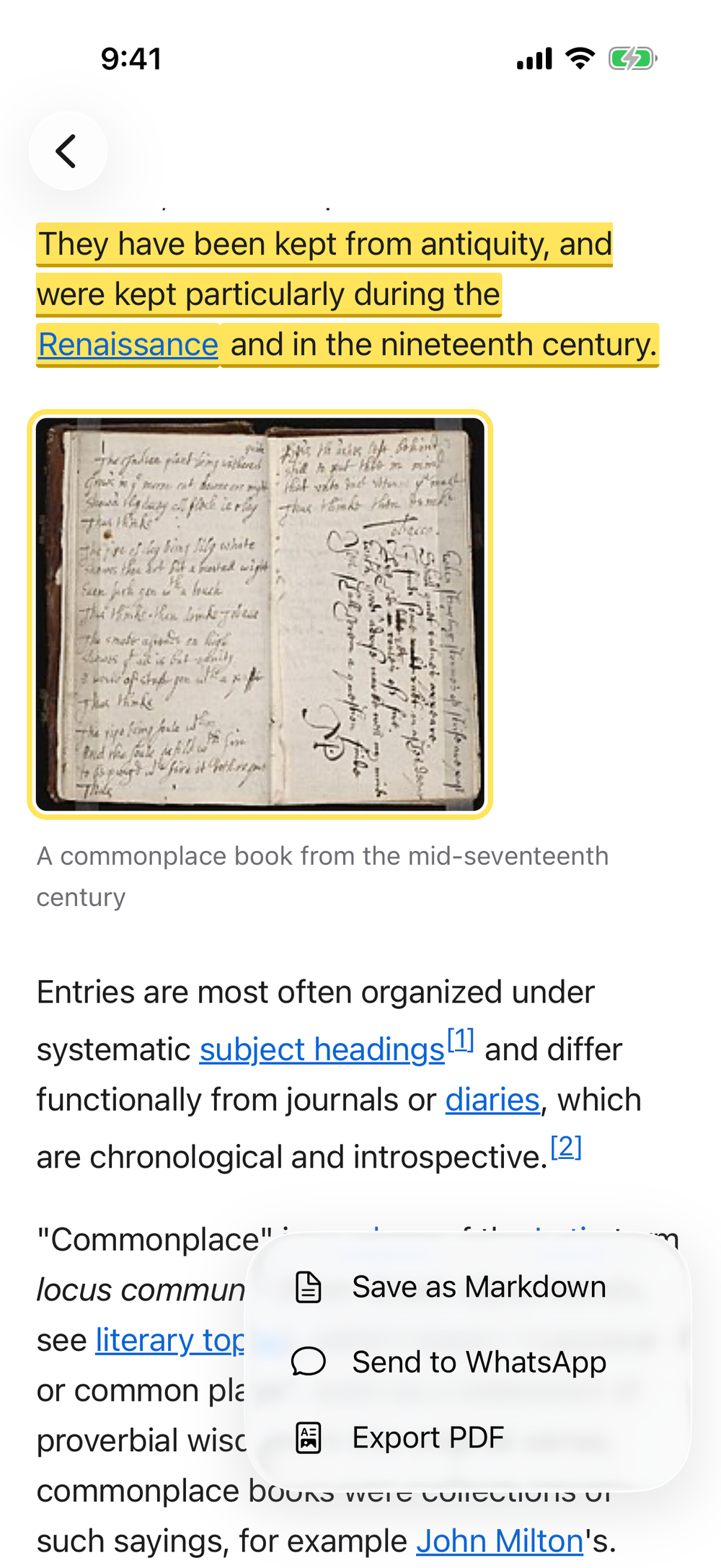
Export PDF makes a tidy A4 PDF with working links. My highlights stay highlighted, and my notes sit right under the paragraph they belong to.
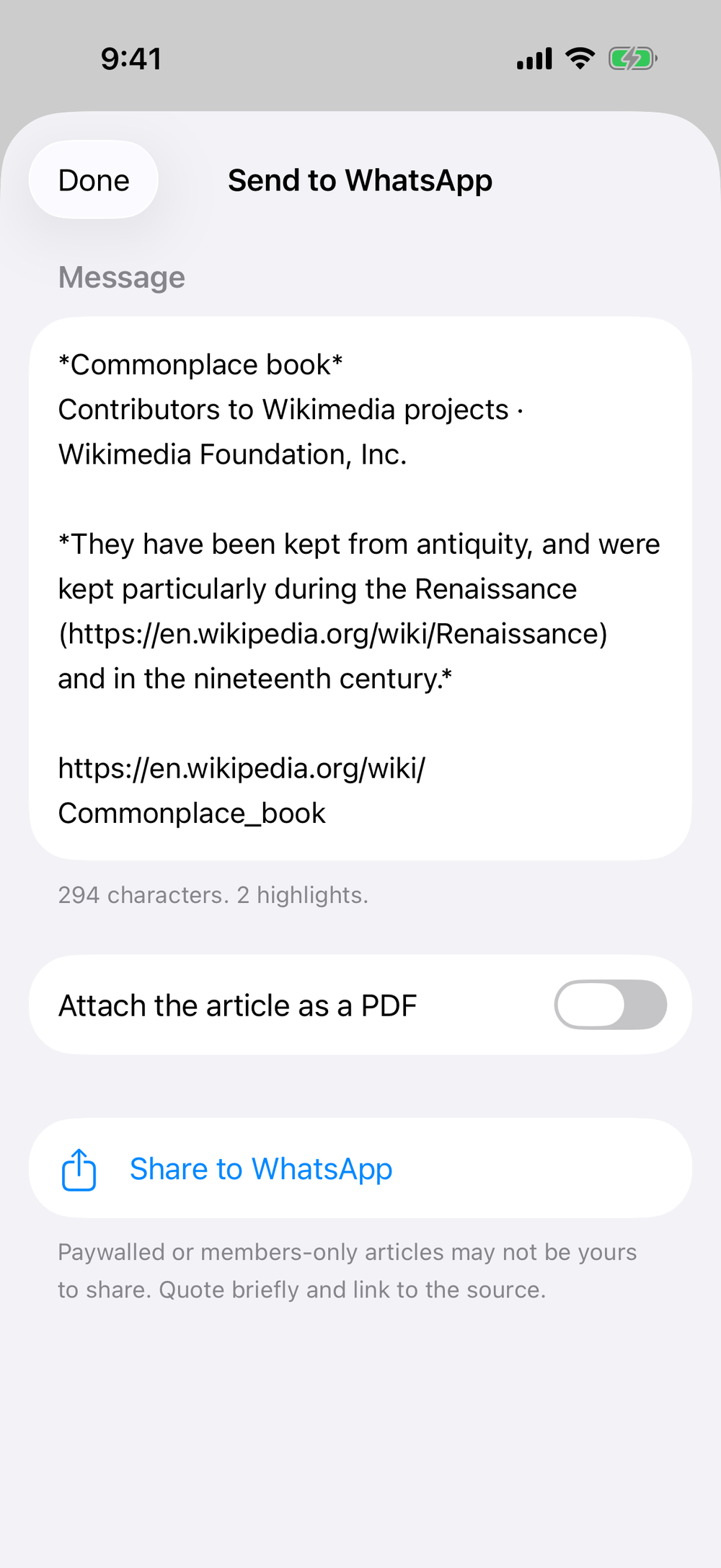
Send to WhatsApp writes a short message with the title, the author, my highlights and the link. I can attach the PDF too.
Save as Markdown is the new one, and it’s the reason for this post.
How I’m using it nowadays
My workflow is now:
- I see an interesting article.
- I send the link to Article Saver.
- I read it, highlight passages and leave notes.
- I share the highlights and notes with others, through PDF or Whatsapp.
- I save the same highlights and notes to my Obsidian vault.
Step 5 is what I added this week. I realised that my notes and highlights were going to other people, but what I read and highlighted wasn’t feeding into any kind of Zettelkasten or second brain of my own. The closest thing I have is an Obsidian vault on Dropbox.
So now one tap on Save as Markdown writes a note straight into my vault’s Inbox folder. I pointed the app at that folder once, in Settings, through the iOS Files picker. The note looks like this:
---
source: article-saver
captured_at: 2026-11-07T15:33:12+08:00
status: fleeting
title: "Commonplace book"
author: "Contributors to Wikimedia projects"
site: "Wikimedia Foundation, Inc."
published: "2004-02-28T05:45:05Z"
url: "https://en.wikipedia.org/wiki/Commonplace_book"
tags:
  - "notes"
  - "history"
---

# Commonplace book

Contributors to Wikimedia projects · Wikimedia Foundation, Inc.
https://en.wikipedia.org/wiki/Commonplace_book

## Highlights

> They have been kept from antiquity, and were kept particularly during the [Renaissance](https://en.wikipedia.org/wiki/Renaissance) and in the nineteenth century.

My Obsidian vault is the same idea, a few centuries later.

> ![[assets/2026-11-07-153312-8fb5e0942c67e96e9274196fc3201158.jpg]]
It contains just my highlights and notes, not the full article. Highlighted images go into the vault’s assets folder, and the hashtags become Obsidian tags. Each save is a new, timestamped file, so saving an article again never overwrites anything I’ve since edited in Obsidian.
This is what I like about a Boring Tiny Tool. I noticed the gap while using the app, described it, and was saving highlights into my vault from my iPhone the same day. No product roadmap would have had this feature, because I am probably its only user!
The screenshots are from the iPhone simulator, showing Wikipedia’s Commonplace book article, whose text is available under CC BY-SA 4.0.